

Losing important files can be a stressful experience, but the good news is that there are several methods to recover deleted files. Here’s a detailed guide to help you retrieve your lost data effectively.
1. Use Recycle Bin
The first and easiest step is to check the Recycle Bin (or Trash on Mac). When you delete a file, it usually moves to the Recycle Bin, where it remains until you empty it
- Step 1: Double-click on the Recycle Bin icon on your desktop.
- Step 2: Find the file you want to retrieve from the list.
- Step 3: Right click on that file and select the “Restore” option.
- Note: If the file is removed from the recycle bin, this method will not work.

2. Restore from Backup
If you have a backup system in place, you can restore deleted files from there. Regular backups are crucial for data recovery.
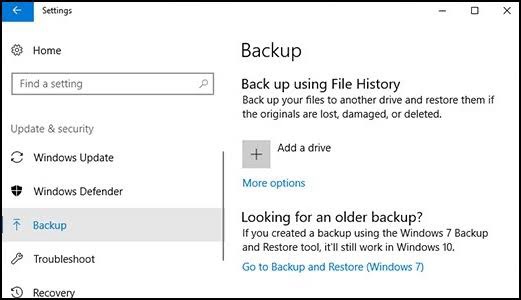
- Step 1: Open Backup and Restore (Windows Backup) on your computer.
- Step 2: Select the option “Restore my files”.
- Step 3: Retrieve the required files by following the instructions.
- Note: Make sure you have set up a backup and the latest backup is available.
3. Use file recovery software
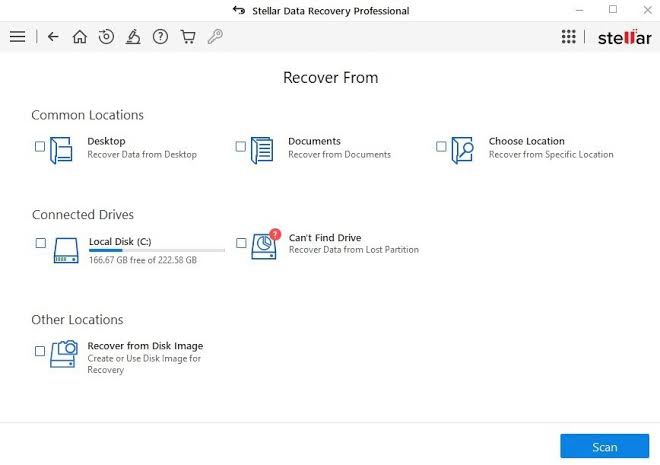
If the file is not in the Recycle Bin and you don’t have a backup, file recovery software can be a viable option. Programs like Recuva, EaseUS Data Recovery Wizard, and Stellar Data Recovery are popular choices
- Step 1: Download and install file recovery software such as Recuva, EaseUS Data Recovery, or Stellar Data Recovery.
- Step 2: Run the software and select the drive where the files were lost.
- Step 3: Scan and retrieve the discovered files.
- Note: The scanning process may take time and sometimes some files may not be retrieved.
4. Use cloud storage
If you store files on cloud services like Google Drive, Dropbox, or OneDrive, you might be able to recover deleted files from there. Most cloud services keep deleted files in a trash or deleted items folder for a certain period.
- Step 1: If you saved the files on Google Drive, Dropbox, or OneDrive, go to that service’s website.
- Step 2: Go to the “Trash” or “Deleted Files” folder.
- Step 3: Select the files and click on “Restore”.
- Note: In cloud storage services, deleted files are usually saved for a certain period of time.
5. Take the help of a data recovery professional
- If the above methods do not work, contact a data recovery specialist who can help retrieve your data.
Step 1: Select an experienced data recovery service.
- Step 2: Hand over your drive to them and follow their instructions.
- Note: This method can be expensive, but the chances of success are high.
6. Some additional tips for data recovery
- Do not delete files immediately: If you delete a file by mistake, try recovery immediately. Recovery is more likely before saving new data to the same drive.
- File system status: When you try to retrieve files, note that the drive status is also important. Recovery on an old or bad drive can be difficult.
- Before using professional software: Before using the software, make sure you thoroughly check their reviews and recommendations.
Various methods are available to recover deleted files. First, use the recycle bin and backup. If these methods don’t work, use file recovery software or cloud storage. If the problem persists, get professional help.
 95TechGuru